
GTA 6 Map Controls: Open Map, Set Destinations and Add Markers
Use GTA 6's game map to set a destination, add a marker, find shops and recenter the view. Includes PS5 controls and fixes for missing navigation.
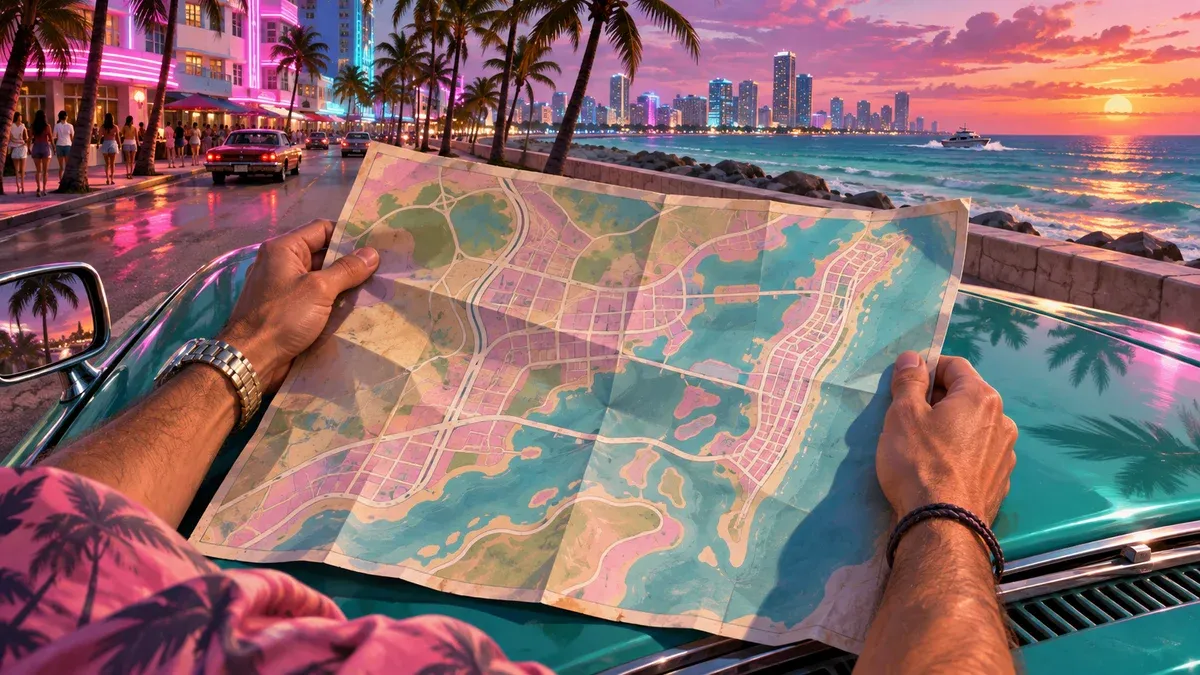
How do you open the GTA 6 map?
On PS5, press the touch pad, or press Options and select Map from the pause menu. AllThingsHow’s PS5 map walkthrough documents both methods and the destination and marker prompts. On Xbox, open the pause menu with Menu, choose Map and follow the platform-specific prompts on screen.
This guide covers GTA 6’s own map interface. Our interactive region atlas is a separate website tool; its search, saved checklist and zoom controls do not change your game map.
If you need to save progress, use the Game section of the pause menu instead. Opening a map and making a manual save are separate actions.
How do you set a destination or add a marker?
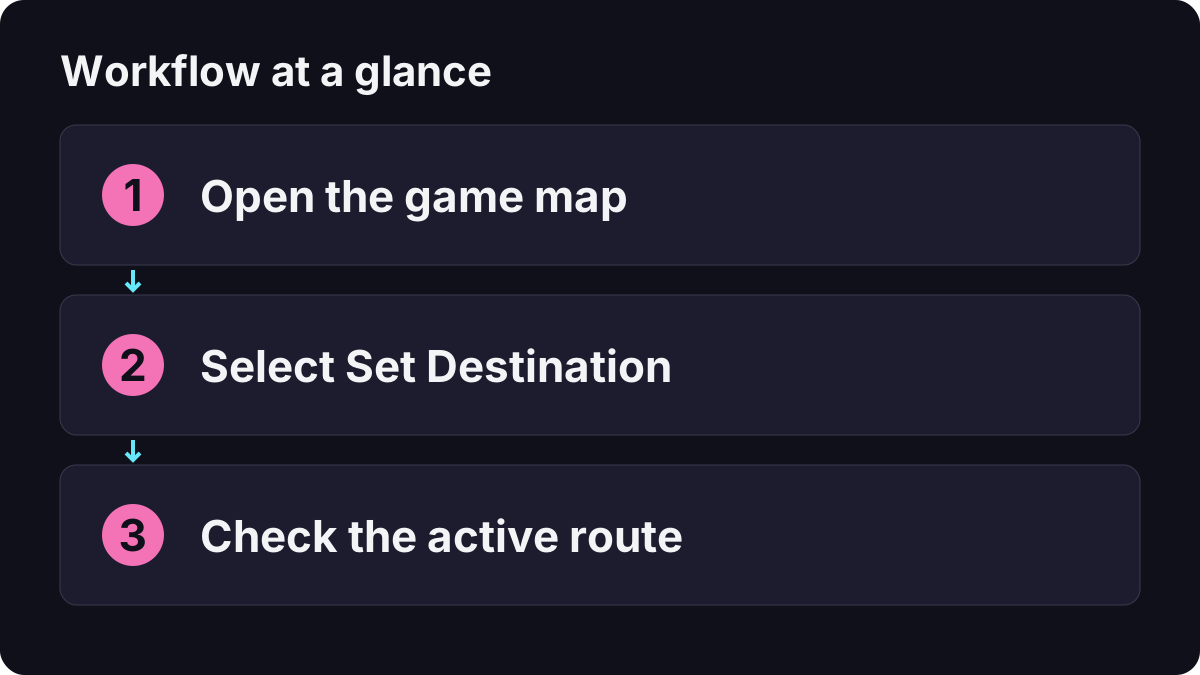
- Open the map and move the cursor to the place you want.
- Check the highlighted place or selected position before confirming.
- Choose one action: Set Destination to travel there now, or Add Marker to save a reference point for later. You do not need to perform both.
- Return to play. If you set a destination, check that the active destination is the one you intended; if you added a marker, check its saved position on the map.
The PS5 walkthrough shows Cross for Set Destination, Square for Add Marker and Circle to exit. These are map-screen actions, not a universal button assignment for every interaction. If you have remapped controls, use the live prompts rather than applying another player’s layout unchanged.
Place your cursor deliberately. A marker dropped on a roof, shoreline or the wrong side of a building may be close to the location visually but awkward for the final approach. Think about which road or entrance you actually need.
What is the difference between a destination and a marker?
| Your intention | Use | What to check afterward |
|---|---|---|
| Travel to a place now | Set Destination | The active destination and any navigation shown in play |
| Remember a place for later | Add Marker | Whether you saved the intended position |
| Find where your character is | Recenter | The map has returned to the relevant character position |
| Change the way the map is displayed | The available map-view control | You changed the view, not the selected travel target |
A useful habit is to separate places worth remembering from the next place you are actually visiting. This avoids turning every interesting discovery into a route change. When starting a task, check the active objective as well as your personal destination; a personal marker is not confirmation that the task has advanced.

Luh Haiti: opening the map, setting waypoints and finding stores
How do you find a shop or service on the map?
Use the map’s category index to narrow the kind of service, then inspect the selected entry and its description. Choose the service you need before placing a destination. A nearby icon is not necessarily the correct shop type.
For example, when preparing to change an outfit, use the wardrobe and clothing guide. When buying a compatible optic, use the weapon shop and customization guide. Those tasks need different locations even if both appear as businesses on the map.
If several results have similar names, compare the region and surrounding roads before setting the route. Record the business name and neighborhood rather than only taking an unexplained screenshot. Our Leonida exploration guide provides a method for organizing those location notes.
Why is there no navigation after you select a point?
Work through these checks in order:
| What you see | Possible cause to check | Next action |
|---|---|---|
| A pin but no intended route | You used Add Marker rather than Set Destination | Reopen the map and choose the travel action. |
| A route toward a different place | An older destination or current objective is still active | Inspect the selected target and the current mission instruction. |
| The map is centered somewhere unexpected | The cursor was moved away from your character | Use Recenter before selecting a new nearby target. |
| Useful HUD information is hidden | Your navigation or UI preferences differ | Review the relevant options in settings. |
| The destination is close but the entrance is not | The pin and the accessible approach are different | Inspect surrounding streets, signage and the building frontage. |
Treat these as diagnostic checks, not a claim that every missing route is caused by settings. A scene, mission or restricted interaction may have its own instructions. Record what you pressed and what appeared before resetting unrelated options.
Does setting a waypoint unlock a location or pay for travel?
No. Selecting a target records where you want to go; it does not establish that a door is open, an activity is available or transport has been purchased. For passenger travel, follow the separate Paradise Taxi and RydeMe guide.
Likewise, a place discussed in a poster photo should not be turned into an exact pin without checking its position. The Selfridges map analysis explains the difference between a printed illustration and usable navigation information.
What is a good first map exercise?
Pick two familiar locations a short distance apart. Set one as your destination, return to play and identify the nearest useful approach. Then reopen the map, add a marker for a separate place you want to remember and check that you understand the two roles.
Next, recenter the map and search for one service you genuinely need. This short routine is more useful than filling the map with pins before you recognize their purpose. When visiting a new region, keep the starting point, destination and actual entrance in the same note so the trip can be repeated later.
Related Articles
guides
GTA 6 100% Completion Guide: Checklist and Cleanup Order
Organize GTA 6 100% completion with a category checklist, discovery targets, regional cleanup routes and a clear method for checking stalled progress.
guides
GTA 6 Best Beginner Settings: Controls, HUD, Audio and Units
Set up GTA 6 for a clearer first session: find settings, adjust controls and readability, turn menu narration on or off, change distance units and reset safely.
guides
GTA 6 Change Clothes: Wardrobe, Saved Outfits and Vehicle Storage
Change clothes in GTA 6, use a wardrobe, find clothing stores, save an outfit and prepare a vehicle change. Includes checks for missing clothes and rewards.
Was this helpful?
Thanks for the feedback!