
GTA 6 How to Save: Manual Saves, Autosave and Greyed-Out Options
Find GTA 6's Save Game and Load Game menus, use manual slots safely, understand autosave and troubleshoot a greyed-out save option during missions.

How do you manually save GTA 6?
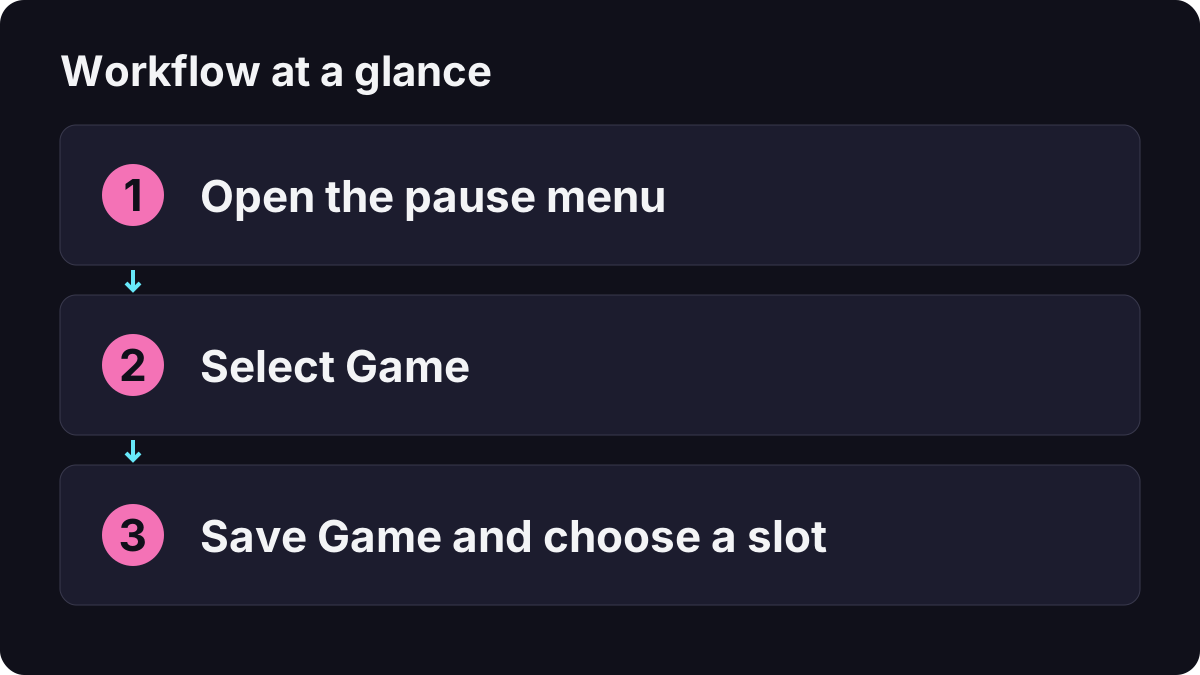
Open Pause Menu → Game → Save Game while in free roam, choose a slot and confirm. PowerPyx’s saving guide documents Options on PS5 and Menu on Xbox, with 15 manual slots and a separate autosave.
You do not need to visit a bed just to open this pause-menu save workflow. The important distinction is whether the game currently allows a manual save, rather than whether you are standing inside a residence.
What is the safest step-by-step saving routine?
- Finish the current interaction and check whether you are back in free roam.
- Press the pause-menu button and open Game.
- Select Save Game. If it is disabled, use the checks below instead of repeatedly pressing confirm.
- Choose an empty slot or a save you deliberately intend to replace.
- Read any overwrite confirmation before accepting it.
- Allow the save process to finish before closing the game or switching off the console.
Before replacing an older save, compare its mission, progress and timestamp. The most recently highlighted row is not necessarily the one you want to lose. A new save in a different slot gives you a recovery choice that overwriting the same slot cannot provide.

Mr Lawrence: how to save your game in GTA 6
Why is Save Game greyed out?
Launch reporting identifies missions as a common restriction. Radio Times distinguishes the pause menu from the map and explains the mission-saving limitation. A disabled save row during a mission is therefore not, by itself, evidence of a broken save system.
| Situation | What to do |
|---|---|
| A mission is active | Follow the mission until manual saving is available again. |
| You opened Map instead of Game | Return to the pause menu and select the correct section. |
| A dialogue or contextual interaction is active | Finish or safely leave that interaction, then check again. |
| The save row is selectable but writing fails | Record the error and check the platform’s storage/status messages. |
| You are unsure which slot contains the present run | Compare visible mission details and timestamps before loading anything. |
Do not delete save data as an initial attempt to make a disabled button work. First determine whether the problem is availability, slot selection or an actual write error. Those are different situations with different consequences.
Can you rely on autosave instead of manual saves?
Autosave is convenient, but it is not a collection of every earlier point you might want to revisit. PowerPyx also warns that loading an earlier manual save can replace the autosave associated with your later progress. That makes an unprotected autosave a poor place to leave the only copy of a long session.
Before testing an old checkpoint, make a separate manual save of the current run where possible. Then identify the earlier slot you want to load. Do not assume that visiting an old chapter will merge its discoveries into your later save.
The missable trophies and save-planning guide covers long-term checkpoint planning. This article concentrates on operating the save and load menus, so you can use the two together without repeating the same slot strategy.
How do you load an earlier save without losing track of progress?
Use Pause Menu → Game → Load Game, then inspect the listed save before confirming. PC Gamer’s saving walkthrough identifies the same Game section for saving and loading.
A practical loading checklist is:
- Have I preserved the current run in a different manual slot?
- Does this older save show the story position I actually want?
- Am I expecting to replay an earlier state, rather than combine two states?
- Do I know which slot to load when the test is finished?
Keep those answers in a short note if you maintain several chapter checkpoints. Slot number plus mission and date is more useful than a label such as “the good save.”
When is it worth making an extra manual save?
Save before ending a long session, trying an unfamiliar activity, experimenting with a purchase or revisiting an earlier chapter. These are planning recommendations, not extra conditions the game demands.
For example, save before testing weapon upgrades if you want to compare a purchase without confusing the result with your normal progress. Save before a long taxi journey when you are also preparing to stop playing. You still need to wait until saving is actually permitted.
Are checkpoints, cloud synchronization and manual slots the same thing?
No. A mission checkpoint helps resume an activity; a manual slot preserves a chosen state; cloud synchronization copies data according to the platform’s rules. Do not assume cloud synchronization gives you a historical restore point for every overwritten slot.
If the console presents a local-versus-cloud conflict, compare the displayed dates and progress carefully. Read the platform message rather than choosing whichever file is larger. For storage questions, see deleting games and protecting save data.
What information helps diagnose a genuine save problem?
Record the platform, active mission, whether Save Game is grey or selectable, the target slot, any exact error message and available storage. If other games also fail to write data, that is different evidence from one mission temporarily disabling saving.
For general launch and license failures, use launch troubleshooting. Keep the existing save files while you establish the cause; a menu-state problem should not become a lost-progress problem through an unnecessary deletion.
Related Articles
guides
GTA 6 100% Completion Guide: Checklist and Cleanup Order
Organize GTA 6 100% completion with a category checklist, discovery targets, regional cleanup routes and a clear method for checking stalled progress.
guides
GTA 6 Best Beginner Settings: Controls, HUD, Audio and Units
Set up GTA 6 for a clearer first session: find settings, adjust controls and readability, turn menu narration on or off, change distance units and reset safely.
guides
GTA 6 Change Clothes: Wardrobe, Saved Outfits and Vehicle Storage
Change clothes in GTA 6, use a wardrobe, find clothing stores, save an outfit and prepare a vehicle change. Includes checks for missing clothes and rewards.
Was this helpful?
Thanks for the feedback!