
GTA 6 PS5 Pro Features: PSSR, Shadows and Upgrade Checklist
Compare confirmed GTA 6 PS5 Pro visual enhancements with PS5 controller and audio features, and decide what to check before upgrading your console.
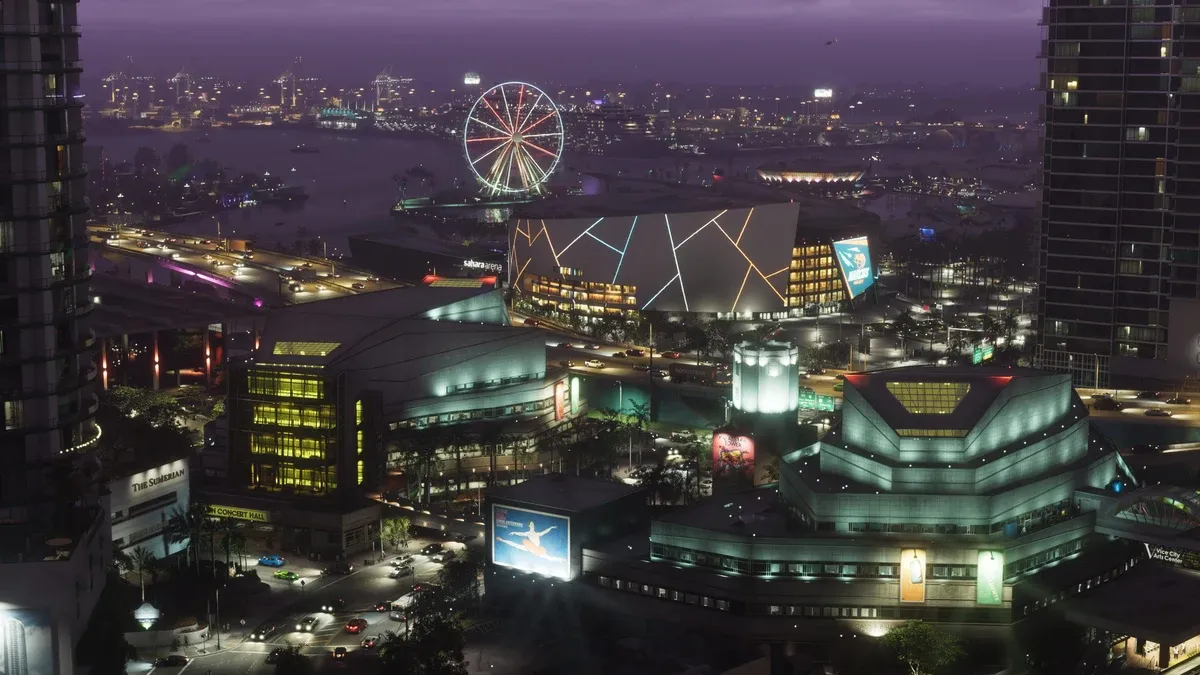
What has Sony confirmed for GTA 6 on PS5 Pro?
Sony’s November 10 feature announcement identifies PSSR image reconstruction and ray-traced shadows on PS5 Pro. These are specific visual features. They should not be rewritten as an automatic promise about a 60 FPS mode or a fixed resolution in every scene.
Start a hardware comparison by writing down the improvement you care about: cleaner distant detail, shadow presentation, motion or another part of the experience. Then ask what the available evidence actually demonstrates for that feature.
Which features belong to the wider PS5 experience?
The same announcement discusses DualSense haptics, adaptive triggers and integrated speaker use, Tempest 3D Audio, and SSD-assisted loading for PS5. Keep those separate from the additional Pro visual features when deciding what an upgrade would buy you.
| Feature group | What to compare |
|---|---|
| Pro visual enhancements | PSSR presentation and ray-traced shadows |
| Controller feedback | Comfort and available adjustment options |
| Audio | Your playback device and positioning experience |
| Loading | Comparable transitions and installation conditions |
| Performance mode | The specific mode and measured behavior |
This avoids attributing every PS5 feature to the Pro model. If you already own a compatible console, first check which parts of the experience you can adjust on it.
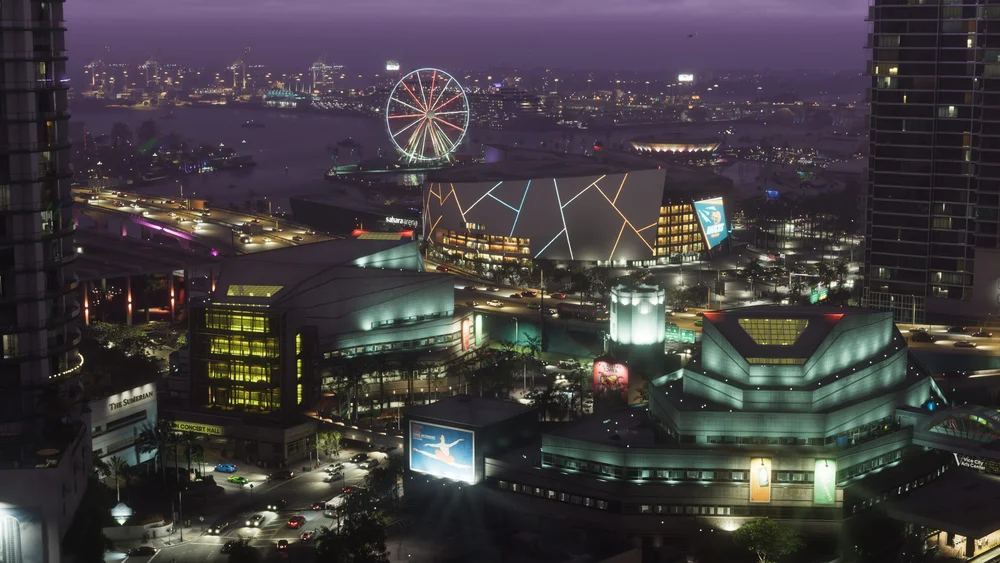
What should you look for in a PSSR comparison?
Use matching scenes and similar camera movement. Inspect fine edges, distant detail and the stability of the image in motion. A compressed social-media clip or one enlarged still can conceal or exaggerate differences.
Keep the display setup consistent. Image sharpening, picture processing and viewing distance can change what stands out. When reading a review, check whether screenshots came from the same build and whether the display or capture method changed between examples.
Do ray-traced shadows establish the frame rate?
No. Shadow rendering and frame delivery answer different questions. Read the actual mode description and use a representative performance test before attaching a number to the feature list.
Likewise, a television advertising 120 Hz describes display capability. It does not by itself establish what the game renders. The frame-rate guide explains 30 versus 60 FPS, pacing and output refresh in more detail.
Should an existing PS5 owner upgrade?
List your current console, display, usual viewing distance and the visual change you most want. Then compare the full upgrade cost with a relevant side-by-side test. If your main complaint is unreadable text, uncomfortable vibration or poor audio balance, first investigate the available settings rather than assuming new hardware is the only solution.
For a first console purchase, include game cost, storage and accessories you actually need. An enhanced-game badge does not decide the right spending level for every setup.
What should you check on your first session?
Complete installation and updates, review the game’s available picture and accessibility options, and adjust one setting at a time. Use a normal scene at your usual seating distance. Keep a brief note of the selected mode so later comparisons remain meaningful.
When an option is absent, check your actual game and system configuration. Avoid following invented menu names from a pre-release post. For installation trouble, use the launch guide rather than changing display settings at random.
What should you read next?
Related Articles
guides
GTA 6 100% Completion Guide: Checklist and Cleanup Order
Organize GTA 6 100% completion with a category checklist, discovery targets, regional cleanup routes and a clear method for checking stalled progress.
guides
GTA 6 Best Beginner Settings: Controls, HUD, Audio and Units
Set up GTA 6 for a clearer first session: find settings, adjust controls and readability, turn menu narration on or off, change distance units and reset safely.
guides
GTA 6 Change Clothes: Wardrobe, Saved Outfits and Vehicle Storage
Change clothes in GTA 6, use a wardrobe, find clothing stores, save an outfit and prepare a vehicle change. Includes checks for missing clothes and rewards.
Was this helpful?
Thanks for the feedback!