
GTA 6 Change Clothes: Wardrobe, Saved Outfits and Vehicle Storage
Change clothes in GTA 6, use a wardrobe, find clothing stores, save an outfit and prepare a vehicle change. Includes checks for missing clothes and rewards.

How do you change clothes in GTA 6?
Use the Wardrobe at an available residence, or a clothing store’s changing room when provided. PowerPyx’s clothing-store guide describes equipping purchased clothes at home, saving outfits and preparing clothing for a vehicle trunk.
Separate three actions: previewing an item, buying it and equipping it. A store preview is not sufficient evidence that the garment has been purchased, and owning an item does not mean it is the one currently being worn.
What is the basic wardrobe sequence?
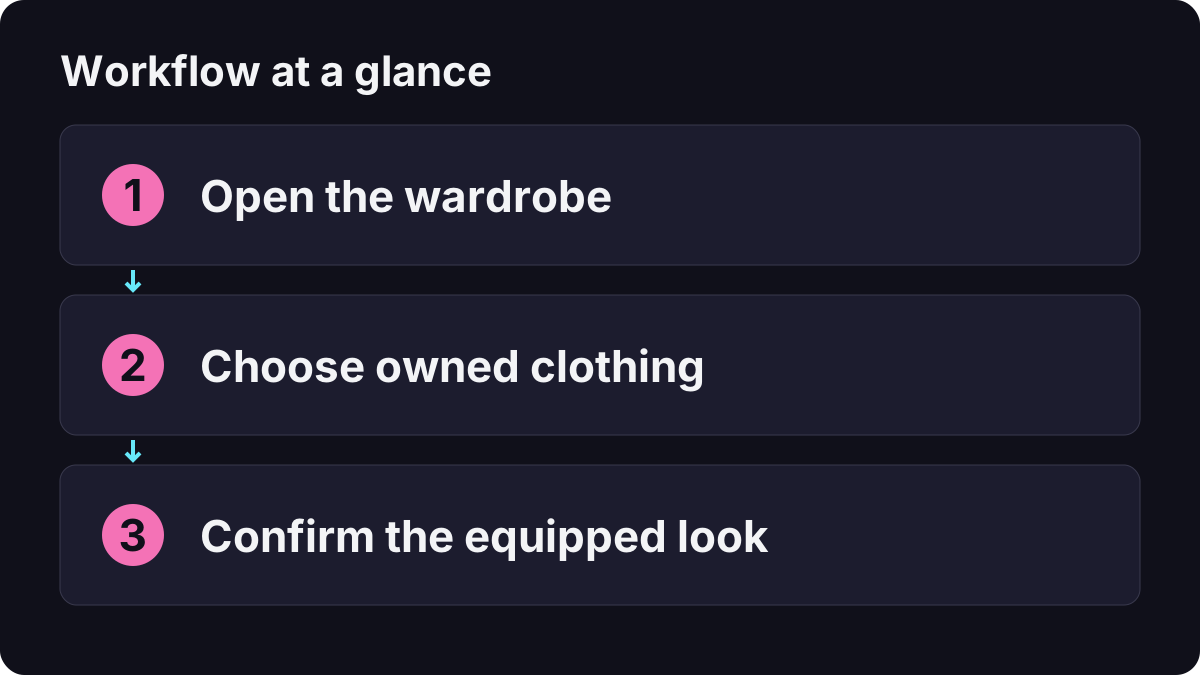
- Control the character whose appearance you want to change.
- Reach a usable wardrobe and interact with it.
- Choose a complete outfit or the relevant individual clothing category.
- Select an owned item, then follow the equip or confirmation prompt.
- Leave the menu and inspect the character to confirm the change.
Start with a simple change such as a different top. Once you know how the menu confirms an equipped item, build a more elaborate combination. This reduces confusion between a preview, a complete outfit selection and a saved custom look.

The Master Miner: changing outfits and clothes in GTA 6
Should you choose an outfit or individual items?
| Choice | Useful for | Check before leaving |
|---|---|---|
| A whole outfit | Applying a coordinated look quickly | Whether it replaced pieces you wanted to keep |
| A top or bottom | Changing one part of the look | Whether the other garments still match your intention |
| Footwear | Completing or changing the lower part of a look | The currently equipped selection |
| Accessories | Adjusting items such as hats or eyewear | Whether the item is actually equipped rather than only previewed |
| A saved combination | Returning to a look you already assembled | You selected the intended saved entry |
If changing a complete outfit replaces an accessory, recheck that accessory afterward rather than assuming the purchase disappeared. The visible result on the character is a better confirmation than the menu position alone.
How do you save a custom outfit and prepare a vehicle change?
Build the look in the wardrobe, locate the saved-outfit controls and follow their confirmation. GamerHour’s wardrobe walkthrough also describes assigning clothing to a registered vehicle from the wardrobe: after choosing the outfit, hold Square on PlayStation or X on Xbox at the vehicle-storage prompt. This assigns the outfit to the registered vehicle; follow the current prompt if your controls differ.
Treat saving a combination and making it available in a vehicle as separate checks. After saving, verify that the entry can be selected again. Before leaving, inspect the relevant trunk-storage prompt and available space. Do not assume every saved look was automatically placed into every vehicle you enter.
For your first test, use a simple spare outfit and a vehicle you can identify as your own. Read the personal vehicle guide if you are unsure about registration or retrieving that vehicle. Keep the original wardrobe look available until you understand where the spare was stored.
How do you find a clothing store that sells what you need?
Use the game map’s clothing or style category, inspect a shop’s description, then set a destination. The PowerPyx reference groups stores by the kind of clothing sold and notes that branches of the same brand often repeat stock. Comparing the shop type is therefore more useful than driving to every similar icon.
Make a short shopping list before travelling: a whole look, one missing garment or a particular accessory. Then compare the actual item and price before confirming. Our map-navigation guide explains how to find a service and distinguish a destination from a reference marker.
What if purchased clothes or a bonus outfit are missing?
| Check | Why it helps |
|---|---|
| Was the purchase confirmed? | A preview and an owned item are different states. |
| Which character is controlled? | You need to inspect the intended character’s wardrobe. |
| Is the correct category selected? | A saved outfit and an individual garment need not appear in the same list. |
| Did you equip a whole outfit afterward? | A later selection may have changed what is visibly worn. |
| Is this an edition or pre-order reward? | Reward access can involve conditions beyond ordinary shopping. |
For bonus items, use the pre-order reward guide rather than buying another edition to test whether a wardrobe entry appears. For the ordinary shopping loop, money and spending priorities can help you avoid using your travel budget on an accidental purchase.
Does changing clothes immediately remove every wanted state?
Do not treat it as a universal reset. A change of outfit and the end of an active pursuit are different observations. Read the HUD and the relevant recognition information before returning to the same situation.
If you changed a shirt but still see a search state, investigate the remaining clues rather than buying more shirts at random. The wanted-level guide separates immediate pursuit from identified clothing, vehicles and other information.
What is a good first wardrobe test?
Choose one familiar residence and one affordable change. Equip it, leave the wardrobe, inspect the result, then return and select the old look again. Next, save a combination and test whether you can retrieve it. Only after that should you rely on a prepared trunk outfit during a longer outing.
This small test is easier to diagnose than purchasing several garments, changing protagonists and entering a mission at the same time. If a look changes later, note the character, activity and last wardrobe action before deciding that an item was lost.
Related Articles
guides
GTA 6 100% Completion Guide: Checklist and Cleanup Order
Organize GTA 6 100% completion with a category checklist, discovery targets, regional cleanup routes and a clear method for checking stalled progress.
guides
GTA 6 Best Beginner Settings: Controls, HUD, Audio and Units
Set up GTA 6 for a clearer first session: find settings, adjust controls and readability, turn menu narration on or off, change distance units and reset safely.
guides
GTA 6 Stats and Workouts: Strength, Cardio and Focus Guide
Improve GTA 6 Strength, Cardio and Focus, read the Fitness app, understand workout windows and recovery, and track Jason and Lucia independently.
Was this helpful?
Thanks for the feedback!