
GTA 6 Best Beginner Settings: Controls, HUD, Audio and Units
Set up GTA 6 for a clearer first session: find settings, adjust controls and readability, turn menu narration on or off, change distance units and reset safely.

Where are GTA 6’s settings?
Open Pause Menu → Settings. Rockstar’s official settings article groups options by function. The useful starting points are:
| Category | Start here for |
|---|---|
| Control Scheme | Button layouts |
| Controller | Look and aim sensitivity |
| Gameplay | Gameplay assistance |
| Display | Picture-related options |
| UI | Text, subtitles, navigation and measurements |
| Camera | View and comfort |
| Audio | Sound and narration |
There is no single preset that is best for every controller, display and player. The recommendations below are a setup method: solve the problem you actually notice, record the change and test it before adjusting something else.
What should a beginner change first?
Use this order so that you can read the menus and understand the controls before judging fine adjustments:
- Readability: check whether text, subtitles and prompts are legible from your normal seat.
- Controls: confirm the scheme you intend to learn and any platform-level remapping.
- Navigation: make sure you can identify the current destination and relevant map information.
- Audio: balance dialogue, instructions and music for the device you use.
- Camera and aiming: compare one change against the same short scene.
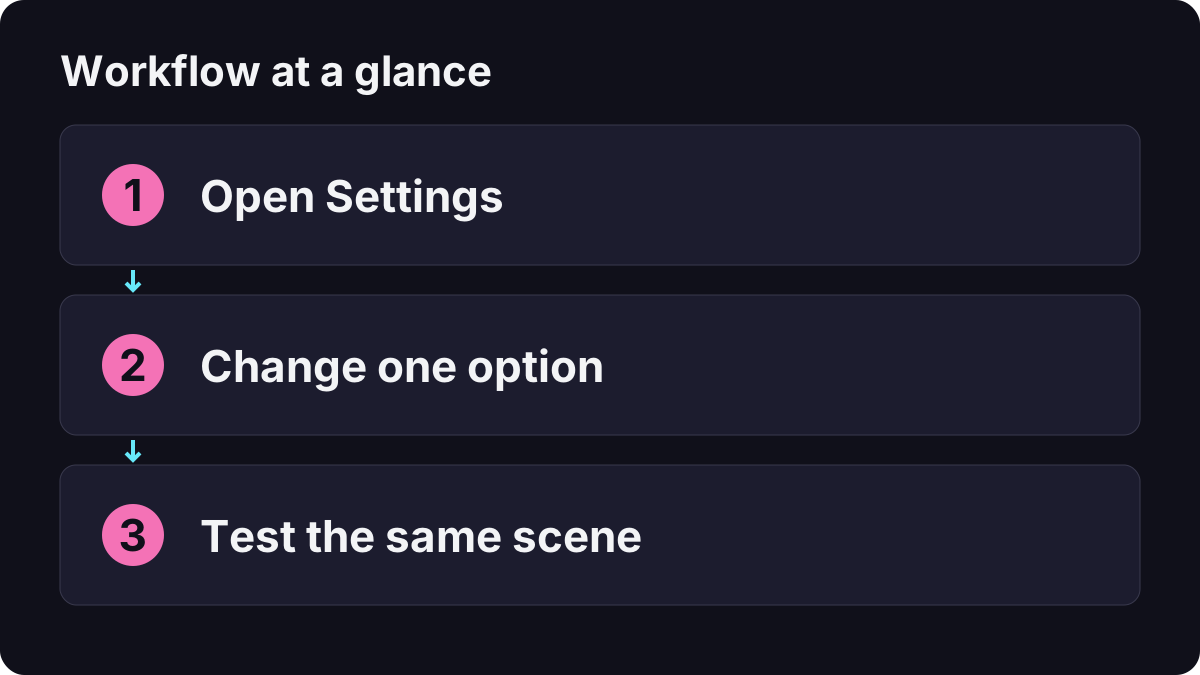
Keep a short note such as “look sensitivity: original value → new value; tested on foot.” This makes reversing an uncomfortable change easier than trying to remember an entire copied preset.

Goals Ghouls & Gears: changing GTA 6 settings
How do you turn menu narration on or off?
Open Settings → Audio, find Narration, then change Screen Narration. Beebom’s launch walkthrough documents this path and the related voice, speed and volume controls.
Keep narration enabled if it helps you navigate. If you enabled it unintentionally, change that option rather than muting all dialogue or lowering the master volume. Those broader changes can remove information you still want to hear.
Test by moving between a few menu items after the change. If a voice remains, identify whether it belongs to menu reading, ordinary character dialogue or another audio function before switching off unrelated features. Accessibility choices are personal preferences, not settings that everyone should disable for performance.
How do you change miles to kilometers?
Go to Settings → UI → Units of Measurement and locate the distance choice. Choose kilometers if that is your preferred unit, then check a distance readout after returning to play. The linked distance-unit tutorial specifically addresses miles-to-kilometers changes.
Changing one distance option should not be assumed to change every speed, temperature or clock display. Inspect each available measurement choice separately. This avoids declaring the change broken because an unrelated number still uses a different format.

GuideToEverything: changing distance units from miles to kilometers
How should you adjust aiming and camera sensitivity?
Start with the default as a reference, then identify the difficulty: turning too slowly, overshooting a target or feeling uncomfortable while looking around. Change one relevant option, return to the same safe location and repeat the same motion.
| Problem you notice | Useful test |
|---|---|
| Camera passes the point you intended | Reduce the relevant sensitivity in a small step and repeat. |
| Turning feels too slow | Increase one relevant value and compare the same turn. |
| On-foot control feels good but driving does not | Check the active context instead of changing every camera option. |
| A button behaves differently from a guide | Compare the selected scheme and system remapping. |
This table is an adjustment method, not a list of measured optimal values. Practice the common inputs in the controls guide and use the camera guide when the issue is inspection or optic aiming rather than sensitivity.
Which HUD and subtitle options matter most?
Prioritize information you need to act on: a readable prompt, the current objective and navigation you can understand at a glance. Search within UI for the relevant readability, subtitle or navigation group rather than toggling every display element off to imitate another player’s screenshot.
If you keep missing turns, first make sure you actually selected a destination. Then review the navigation preferences. The map-controls guide separates a saved marker from an active route; settings cannot fix selecting the wrong action.
For subtitles, check legibility during a bright outdoor scene as well as in the menu. A size that looks fine close to a monitor may be difficult to read across a living room.
Do these settings unlock 60 FPS or fix every display issue?
No performance claim follows from a comfort preset. Text size, audio balance and button layout solve different problems from rendering performance. Read FPS and graphics-mode labels before assuming that a display option changes the frame-rate target.
For the same reason, do not transfer a PC graphics menu from another game to GTA 6’s console version. Describe what the actual menu offers on your platform. If you change a comfort or visual-effects option, judge whether it solves your problem without promising an unmeasured performance gain.
How do you undo changes without resetting everything?
Rockstar lists Restore All and Restore Default controls at the bottom of the settings screen. Read the confirmation to establish what will be restored before accepting. A recorded original value is often the simplest way to reverse one experiment.
After restoring anything, recheck the options that matter most to you, particularly accessibility, subtitles and the active control scheme. For language and voice choices, distinguish a text-language change from audio language rather than resetting unrelated settings.
What is a useful final setup check?
Walk a short route, open the phone, set one map destination, read a subtitle and enter a vehicle. If all five are understandable and comfortable, start playing before making more changes. Revisit a specific option when you can name the problem it needs to solve.
Related Articles
guides
GTA 6 100% Completion Guide: Checklist and Cleanup Order
Organize GTA 6 100% completion with a category checklist, discovery targets, regional cleanup routes and a clear method for checking stalled progress.
guides
GTA 6 Change Clothes: Wardrobe, Saved Outfits and Vehicle Storage
Change clothes in GTA 6, use a wardrobe, find clothing stores, save an outfit and prepare a vehicle change. Includes checks for missing clothes and rewards.
guides
GTA 6 Stats and Workouts: Strength, Cardio and Focus Guide
Improve GTA 6 Strength, Cardio and Focus, read the Fitness app, understand workout windows and recovery, and track Jason and Lucia independently.
Was this helpful?
Thanks for the feedback!